
raygui is an immediate-mode GUI library bundled with raylibr. Unlike retained-mode GUI toolkits (where you create widgets once and query their state), immediate-mode GUIs call a function for each control every frame. The function draws the control and returns its current value or interaction state.
Layout
Every control is positioned with a
rectangle(x, y, width, height). There is no automatic
layout — you place each control explicitly.
gui_set_style(gui_control$default, gui_default_property$text_size, 20L)
gui_panel(rectangle(30, 30, 580, 420), "Settings")
gui_label(rectangle(65, 95, 160, 50), "Name:")
gui_text_box(rectangle(225, 95, 320, 50), "raylibr", 64L, FALSE)
gui_label(rectangle(65, 160, 160, 50), "Volume:")
gui_slider_bar(rectangle(225, 160, 320, 50), "", "80%", 0.8, 0, 1)
gui_check_box(rectangle(65, 235, 30, 30), "Enable sound", TRUE)
gui_button(rectangle(225, 330, 160, 65), "Apply")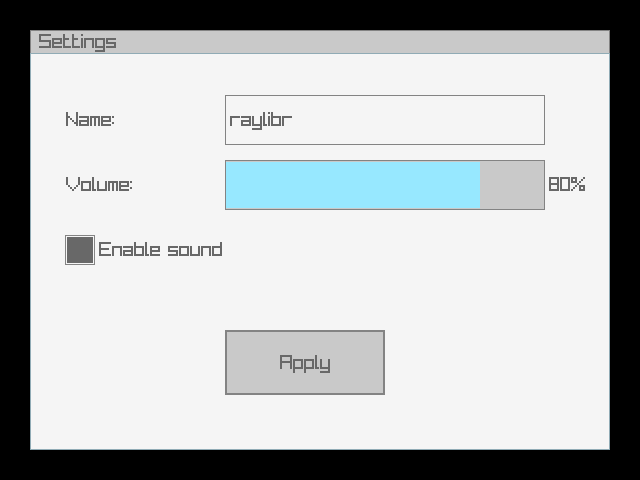
Buttons and labels
gui_button() draws a clickable button and returns
TRUE when clicked:
if (gui_button(rectangle(100, 100, 120, 40), "Click me")) {
  # handle click
}
gui_label() draws static text.
gui_label_button() is a clickable text label.
Toggles and checkboxes
gui_set_style(gui_control$default, gui_default_property$text_size, 20L)
gui_toggle(rectangle(65, 65, 190, 50), "Option A", TRUE)
gui_toggle(rectangle(65, 130, 190, 50), "Option B", FALSE)
gui_toggle_group(rectangle(65, 210, 160, 50), "Low;Medium;High", 1L)
gui_check_box(rectangle(65, 290, 30, 30), "Fullscreen", FALSE)
gui_check_box(rectangle(65, 340, 30, 30), "VSync", TRUE)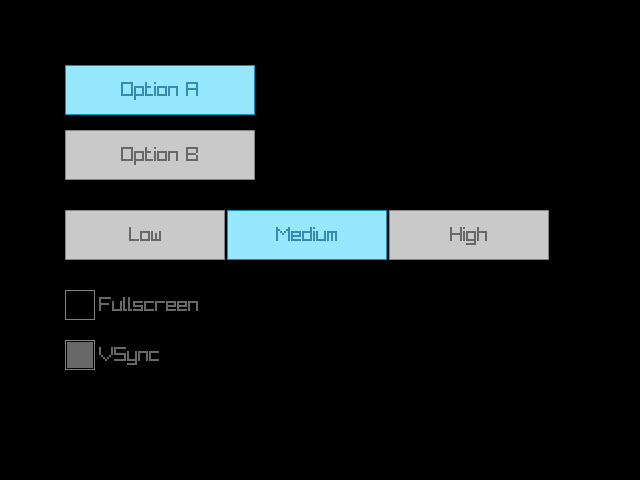
gui_toggle() returns the new active state.
gui_toggle_group() shows multiple options and returns the
selected index. gui_check_box() returns the new checked
state.
Sliders and progress bars
gui_set_style(gui_control$default, gui_default_property$text_size, 20L)
gui_slider(rectangle(65, 65, 480, 30), "0", "100", 65, 0, 100)
gui_slider_bar(rectangle(65, 130, 480, 30), "Vol", "", 0.4, 0, 1)
gui_progress_bar(rectangle(65, 195, 480, 30), "", "75%", 0.75, 0, 1)
gui_spinner(rectangle(65, 260, 240, 50), "", 42L, 0L, 100L, FALSE)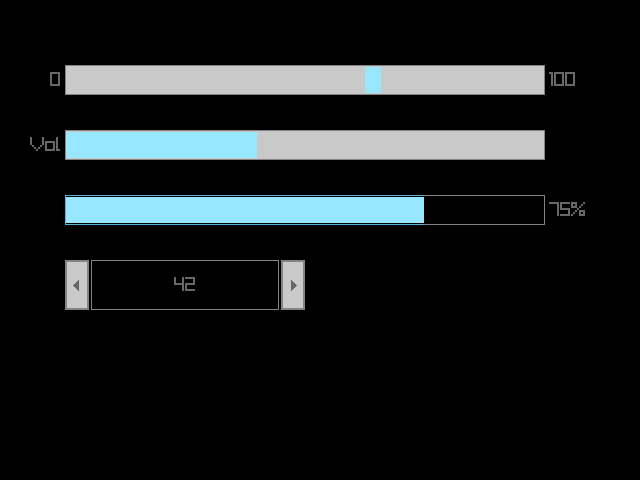
gui_slider() and gui_slider_bar() return
the new value. gui_progress_bar() is display-only.
gui_spinner() shows a value with +/- buttons.
Text input
gui_text_box() renders an editable text field. The
edit_mode parameter controls whether it’s active for
input:
text <- gui_text_box(rectangle(40, 40, 200, 30), text, 256L, edit_mode)gui_combo_box() shows a dropdown-style selector,
gui_dropdown_box() shows an expandable list.
Color controls
gui_color_picker(rectangle(64, 80, 320, 320), "", color(200L, 100L, 50L))
gui_color_bar_hue(rectangle(448, 80, 48, 320), "", 120)
gui_color_bar_alpha(rectangle(528, 80, 48, 320), "", 0.7)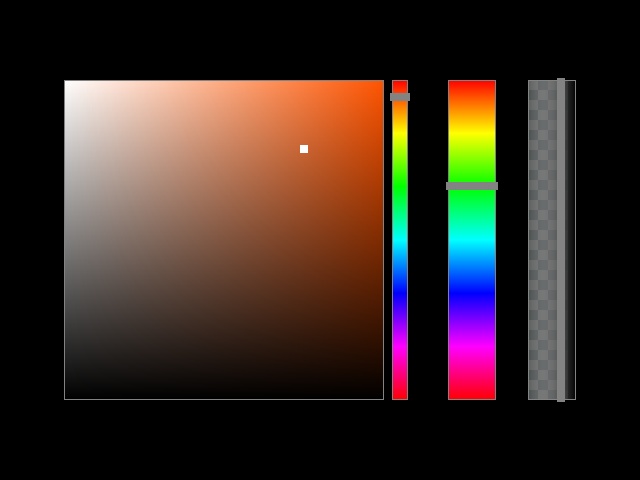
gui_color_picker() returns a color.
gui_color_bar_hue() returns a hue value (0-360).
gui_color_bar_alpha() returns an alpha value (0-1).
Containers
-
gui_panel(bounds, text)— a bordered panel with an optional title -
gui_group_box(bounds, text)— a labeled group outline -
gui_window_box(bounds, text)— a window with a close button (returnsTRUEwhen closed) -
gui_scroll_panel(bounds, text, content, scroll, view)— scrollable area for content larger than the visible region
Styling
Customize the look of controls with gui_set_style():
# Set a property for a specific control type
gui_set_style(gui_control$button, gui_control_property$text_color_normal, 0xFF0000FF)

# Load a complete style file
gui_load_style("my_style.rgs")

# Reset to defaults
gui_load_style_default()
State functions control whether controls are interactive:
gui_disable()  # gray out all controls
gui_enable()   # re-enable
gui_lock()     # controls visible but non-interactive
gui_unlock()
Further reading
See the GUI Controls demo for a complete interactive example with all major control types.